
Get Started
Package Contents
- SyncGo Digital Islamic Hijri Calendar Unit
- Power Adapter
- Desktop Stand
- Quick Start Guide
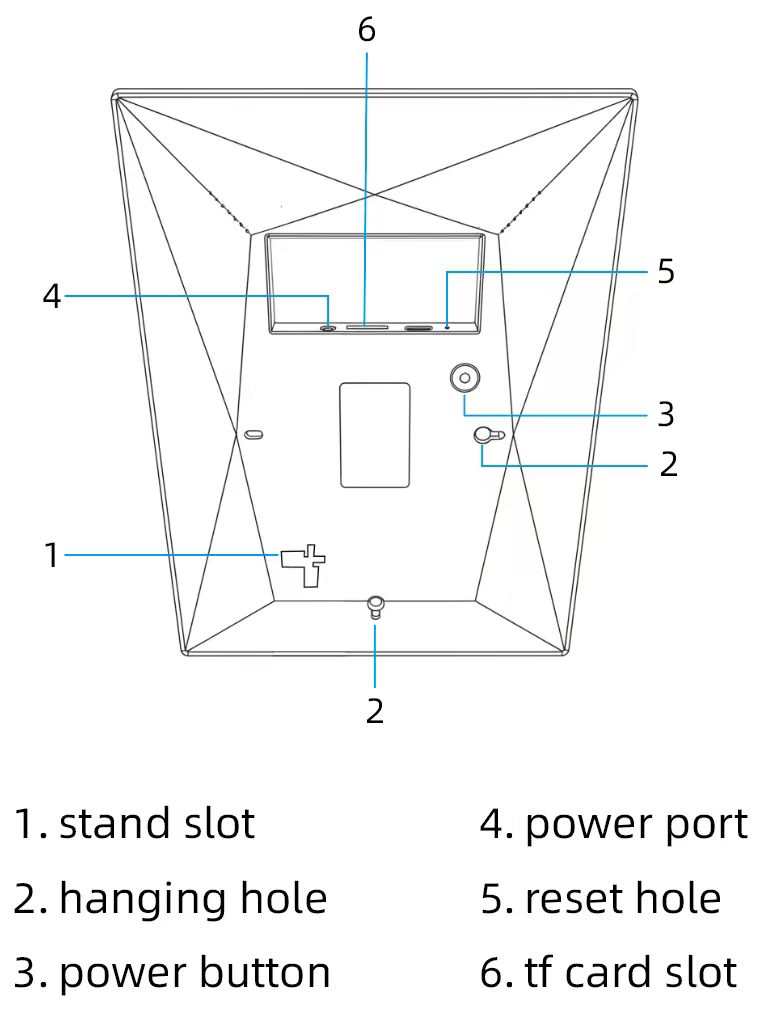
Calendar at glance
Mounting the Calendar
Desktop Installation
To place the calendar on a desk, simply insert the Desktop Stand into the designated slot on the back of the calendar unit.
Wall Mounting
To mount the calendar on a wall, use the built-in hanging hole/bracket on the back of the unit to secure it onto a wall hook or screw.
Powering On and Off
Insert the Power Adapter into the power port on the calendar. The calendar will turn on automatically.
To safely power off the calendar, long press the Power Button on the unit and select "Power Off" from the on-screen menu.
Connecting to Wi-Fi
Initial Setup
When using the calendar for the first time, the setup wizard will appear automatically. Tap your Wi-Fi network name, enter the password, and click the Next button (bottom right) to continue.
Changing Settings
If you need to change your Wi-Fi settings later, long press the background image on the main screen, and navigate to Settings -> Wlan to set up the connection again.
Adjusting Volume
Please go to the Settings->Ringtone, slide the volume slider bar to adjust sound volume.
After the version 1.0.4 Please tap the Plus icon in the top-right corner, select Volume, and drag the slider to adjust the sound level.
Start Quran Player (1.0.4 Above)
Please tap the Plus icon in the top-right corner, select Quran Player